Newsletter Integration – Email, Mailchimp & Brevo
Grow your newsletter audience with Magic Advent Calendar! Allow participants to subscribe to your newsletter directly when entering a giveaway.
Magic Advent Calendar supports three newsletter integration methods: Email, Mailchimp, and Brevo. Whether you use a professional email marketing platform or simply want to collect email addresses, there’s an option for you.
1. Choose Your Newsletter Integration
Before collecting subscribers, you need to configure your preferred newsletter integration.
-
Open your WordPress dashboard.
-
Navigate to Magic Advent Calendar → Newsletter Integration.
-
Choose your preferred integration method.
-
Complete the required settings.
-
Save your changes.
Available Integrations
| Integration | Description |
|---|---|
| Receive newsletter subscriptions directly in your inbox and manage them manually. | |
| Mailchimp | Automatically add subscribers to your Mailchimp audience using Double Opt-In. |
| Brevo | Connect your Brevo account and collect confirmed newsletter subscribers using Double Opt-In. |
2. Email Integration – The Simple Solution
Don’t use Mailchimp or Brevo? No problem!
The Email integration is perfect for anyone who wants to collect newsletter subscriptions without connecting an external email marketing platform.
Whenever a participant subscribes to your newsletter, you’ll receive an email containing their email address.
You can then manually add the subscriber to your existing mailing list or transfer the information to another newsletter platform.
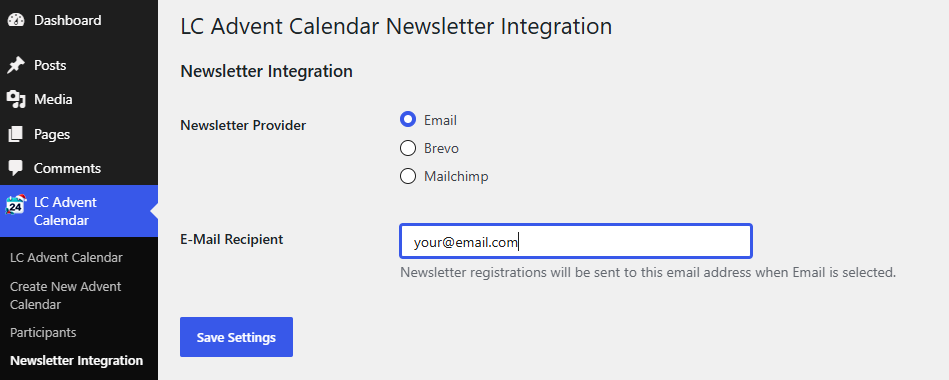
How to Set Up Email Integration
-
Select Email as your newsletter integration.
-
Enter the email address where you want to receive subscription notifications.
-
Save your settings.
How it works
When a participant selects the newsletter checkbox in a giveaway form, Magic Advent Calendar sends a notification to your specified email address.
Please note:
-
No external newsletter account is required.
-
Subscribers are not automatically added to a mailing list.
-
Newsletter campaigns must be managed separately.
-
Email notifications are sent using your WordPress email configuration.
Important: This method does not automatically verify email ownership through Double Opt-In. Make sure you have an appropriate consent and verification process before adding contacts to your newsletter list.
3. Brevo Integration
Connect Magic Advent Calendar with Brevo to automatically add subscribers to your contact lists.
Important: Brevo requires an additional Double Opt-In form configuration. Please follow all steps carefully.
Step 1: Get Your Brevo API Key
-
Log in to your Brevo account.
-
Navigate to SMTP & API → API Keys.
-
Generate a new API key.
-
Copy your API key.
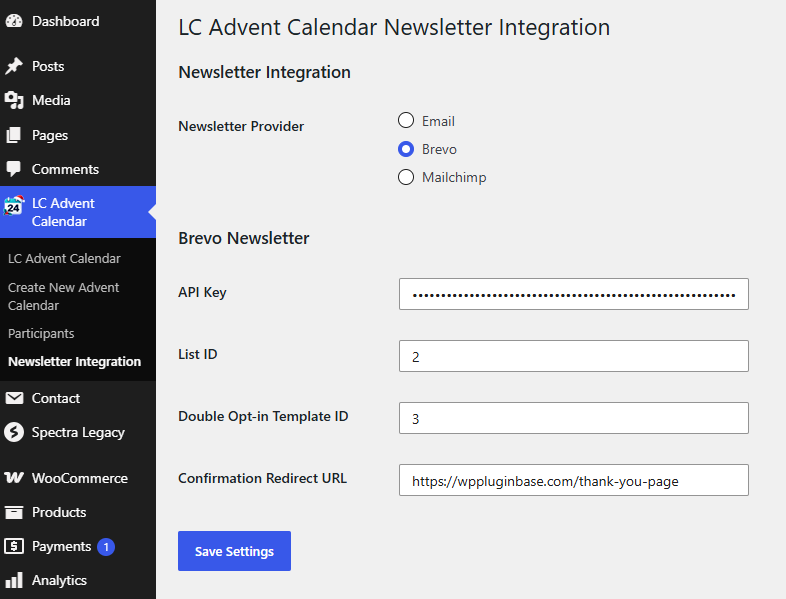
Step 2: Connect Brevo
-
Open the newsletter integration settings in Magic Advent Calendar.
-
Select Brevo.
-
Enter your API key.
-
Select the contact list where subscribers should be added.
-
Save your settings.
Step 3: Create a Double Opt-In Form
⚠️This step is essential! Without the correct form configuration, the Brevo newsletter integration will not work properly.
Magic Advent Calendar uses a Brevo subscription form to initiate the Double Opt-In process.
To configure it:
-
Open your Brevo dashboard.
-
Navigate to Contacts → Forms.
-
Create a new subscription form.
-
Make sure the form contains a Subscribe button.
-
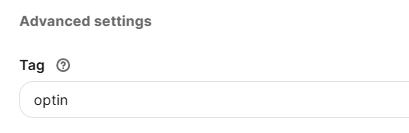
Add the tag
optinto the form. -
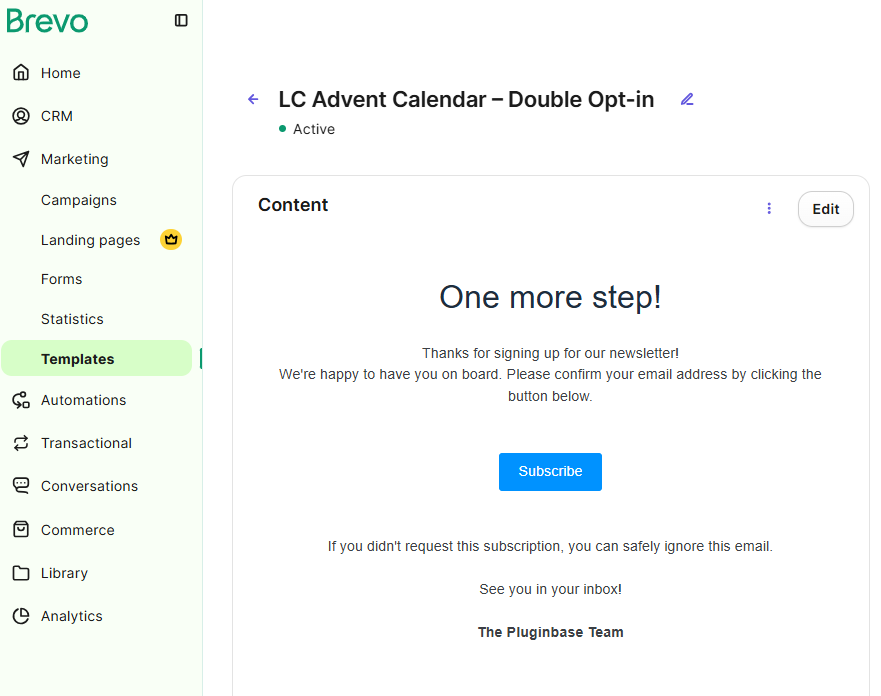
Configure the Double Opt-In confirmation email.
-
Save and activate the form.
Important: Use the Exact Tag optin
Magic Advent Calendar identifies your Brevo subscription form using the tag optin.
The tag must be written exactly as shown:
optin
Do not use Optin, double-optin, or any other variation.
Without this tag, Magic Advent Calendar cannot identify the correct form and the Double Opt-In process will fail.
Step 4: How Brevo Double Opt-In Works
Once everything is configured:
-
A participant enters your giveaway and selects the newsletter checkbox.
-
Magic Advent Calendar submits the subscription request to Brevo.
-
Brevo sends a Double Opt-In confirmation email.
-
The participant confirms their email address.
-
The confirmed subscriber is added to your selected contact list.
4. Mailchimp Integration
Connect Magic Advent Calendar with Mailchimp to automatically collect newsletter subscribers through your giveaway forms.
Step 1: Get Your Mailchimp API Key
-
Log in to your Mailchimp account.
-
Navigate to Profile → Extras → API Keys.
-
Create a new API key if you don’t already have one.
-
Copy your API key.
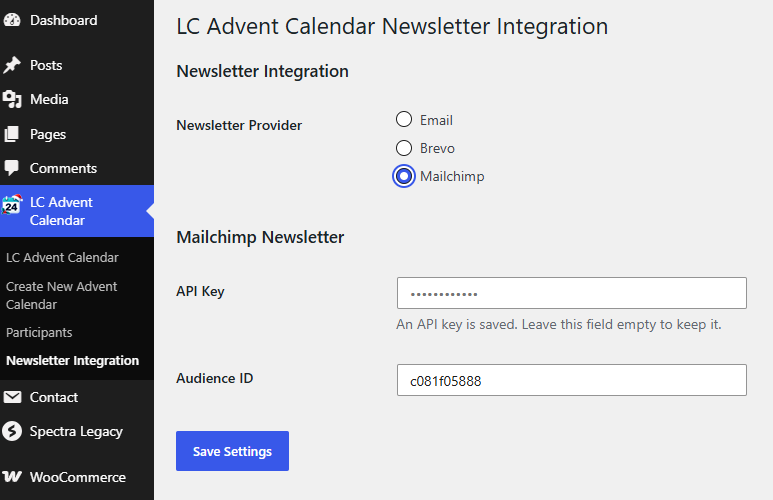
Step 2: Connect Mailchimp
-
Open the newsletter integration settings in Magic Advent Calendar.
-
Select Mailchimp.
-
Paste your API key.
-
Select the Mailchimp audience where subscribers should be added.
-
Save your settings.
Step 3: Double Opt-In
Magic Advent Calendar uses Mailchimp’s Double Opt-In process to confirm newsletter subscriptions.
When someone subscribes:
-
Their email address is submitted to Mailchimp.
-
Mailchimp sends a confirmation email.
-
The participant clicks the confirmation link.
-
Their subscription is confirmed.
If a participant has already started the subscription process but hasn’t confirmed yet (pending), Magic Advent Calendar can request another confirmation email.
Important: Mailchimp may reject email addresses that have been permanently deleted from an audience. These contacts must subscribe again through a Mailchimp-supported signup process.
Important: Pending Subscriptions
Mailchimp generally sends the Double Opt-In confirmation email only once when a new subscription is initiated.
If a contact is already marked as pending, submitting the newsletter form again may not trigger another confirmation email.
Participants should check their inbox and spam folder for the original confirmation email and click the confirmation link to complete their subscription.
Note: Magic Advent Calendar cannot guarantee that Mailchimp will resend confirmation emails to contacts who are already pending.
5. Enable Newsletter Subscriptions in Your Giveaway
After configuring your newsletter integration, you can start collecting subscribers through your Advent Calendar.
-
Open your Advent Calendar in WordPress.
-
Select the door you want to edit.
-
Choose Giveaway as the content type.
-
Enable the newsletter subscription option.
-
Save your changes.

What Participants See
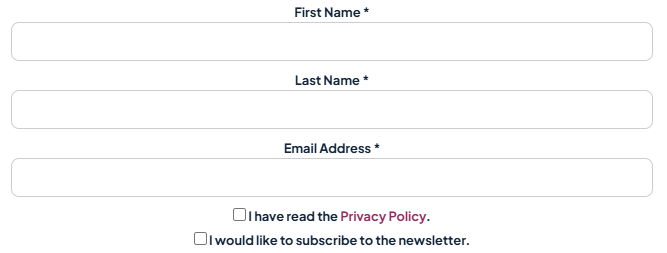
Your giveaway form will display a newsletter subscription checkbox.
Participants can choose whether they want to receive your newsletter.
Newsletter subscriptions are always optional. Participants can enter the giveaway without subscribing to your newsletter.
6. Email Notifications
With Magic Advent Calendar Pro, you can automatically send confirmation emails to participants and receive notifications whenever someone enters a giveaway or completes a quiz.
How to Configure Email Notifications
-
Open Magic Advent Calendar → Calendars.
-
Edit the calendar you want to configure.
-
Navigate to the Email tab.
-
Enable the notifications you want to use.
-
Save your calendar settings.
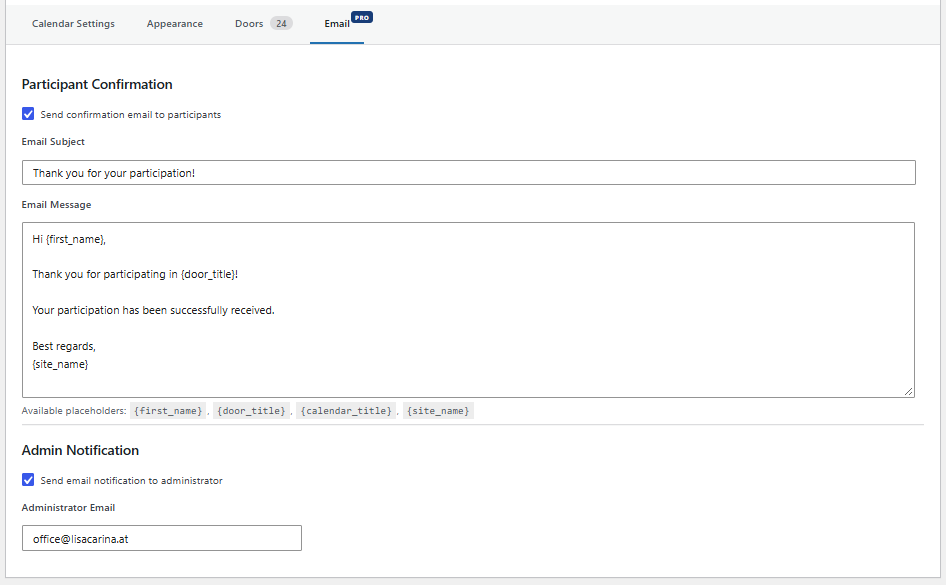
Participant Confirmation Emails
Enable Send participant confirmation email to automatically send an email after a successful giveaway entry or quiz submission.
You can customize the email subject and message for each calendar.
The following placeholders are available:
| Placeholder | Description |
|---|---|
{first_name} |
Participant’s first name |
{email} |
Participant’s email address |
{door_title} |
Title of the giveaway or quiz |
{calendar_title} |
Calendar title |
{site_name} |
Your WordPress site title |
{type} |
Participation type (quiz or giveaway) |
Admin Notifications
Enable Send admin notification to receive an email whenever a participant successfully submits a giveaway or quiz form.
You can specify the recipient email address. By default, your WordPress administrator email address is used.
Important Notes
-
Email notifications are available with an active Pro license.
-
Participant and admin notifications can be enabled independently.
-
Emails are sent through your WordPress email configuration.
-
For reliable delivery, we recommend configuring SMTP.
-
Email notifications are independent of newsletter subscriptions and do not require newsletter consent.
-
Notifications are only sent when a participation form is successfully submitted.
6. GDPR & Privacy
When collecting newsletter subscribers, it’s important to follow applicable data protection regulations.
Magic Advent Calendar allows participants to explicitly agree to newsletter subscriptions.
We recommend:
-
Keeping the newsletter checkbox unchecked by default.
-
Clearly explaining what subscribers will receive.
-
Including a link to your privacy policy.
-
Using Double Opt-In to verify subscriptions.
-
Providing an unsubscribe option in your newsletters.
Remember: Giveaway participation and newsletter consent are separate. Entering a giveaway does not automatically mean someone has subscribed to your newsletter.
7. Troubleshooting
I’m not receiving Email integration notifications
Make sure your notification email address is correct and check your spam folder.
If emails are not being delivered, verify your WordPress email configuration. An SMTP plugin may improve delivery reliability.
Mailchimp subscribers remain pending
A pending status means the participant hasn’t completed the confirmation process.
Ask them to check their inbox and spam folder for the confirmation email.
Mailchimp rejects an email address
Mailchimp may prevent permanently deleted contacts from being re-imported through the API.
In this case, the participant must subscribe again through a supported Mailchimp signup process.
Brevo is not sending confirmation emails
Check the following:
-
Your Brevo API key is valid.
-
The correct contact list is selected.
-
A Double Opt-In form has been created.
-
The form contains a Subscribe button.
-
The form has the exact tag
optin. -
The confirmation email is configured correctly.
The missing optin tag is a particularly important setting to check.
The newsletter checkbox is not displayed
Make sure your newsletter integration is configured and the newsletter subscription option is enabled for the giveaway door.