
Create your own interactive Christmas countdown in just a few steps! Magic Advent Calendar makes it easy to build a beautiful Advent calendar for your WordPress website – with 24 doors, customizable designs, and exciting surprises for your visitors.
This guide will help you create and publish your first Advent calendar.
1. Install Magic Advent Calendar
-
Log in to your WordPress dashboard.
-
Navigate to Plugins → Add New Plugin.
-
Search for Magic Advent Calendar or upload the plugin ZIP file.
-
Click Install Now, then Activate.
Once activated, you’ll find LC Advent Calendar in your WordPress dashboard.
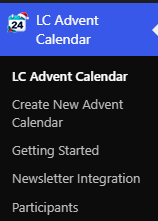
2. Create Your First Advent Calendar
-
Navigate to LC Advent Calendar → Add New.
-
Enter a name for your calendar, such as My Christmas Calendar.
-
Choose the calendar year and start date. By default, your calendar starts on December 1.
-
Add a headline and an optional introduction to welcome your visitors.
-
Enable Test Mode to unlock all 24 doors and preview their content before your calendar goes live.
-
Click Publish.
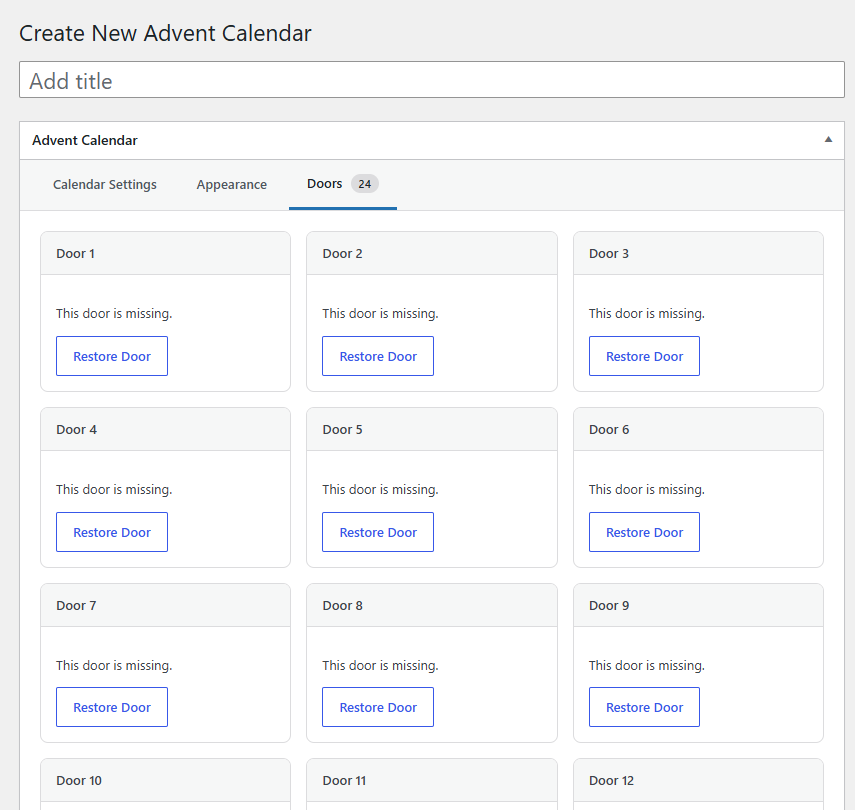
Magic Advent Calendar automatically creates 24 doors for your new calendar.
Each door is assigned an opening date based on your calendar’s start date.
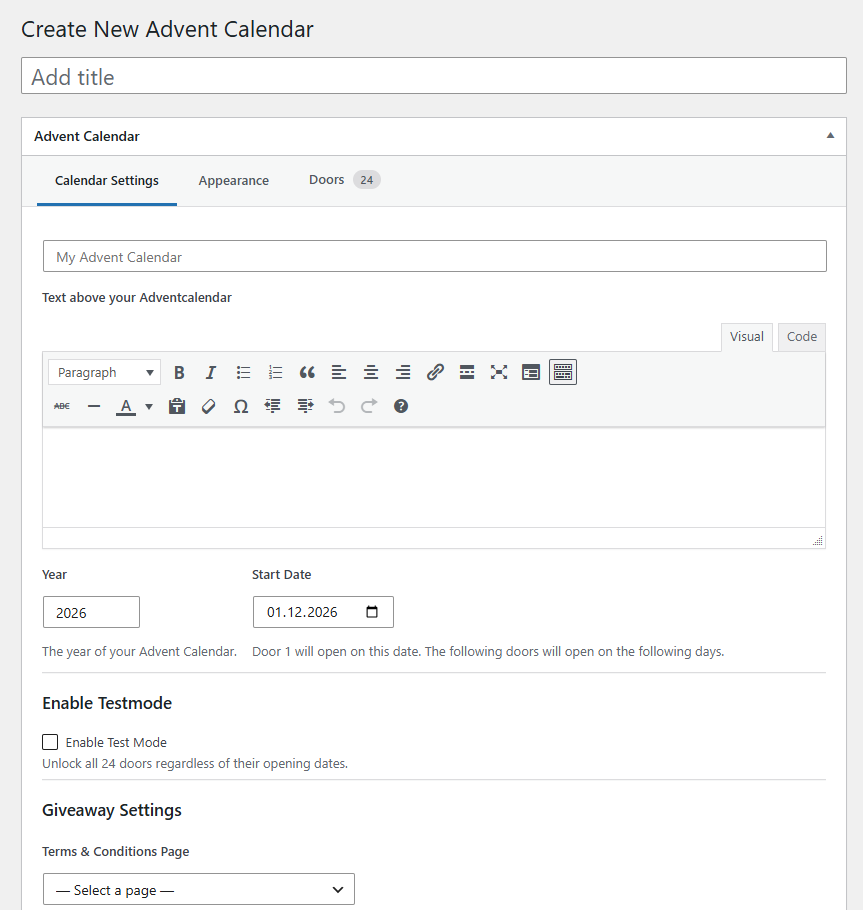
Tip: Test Mode allows you to open and test all doors regardless of their scheduled opening dates. Remember to disable Test Mode before launching your Advent calendar so doors open on their intended dates.
3. Customize Your Calendar
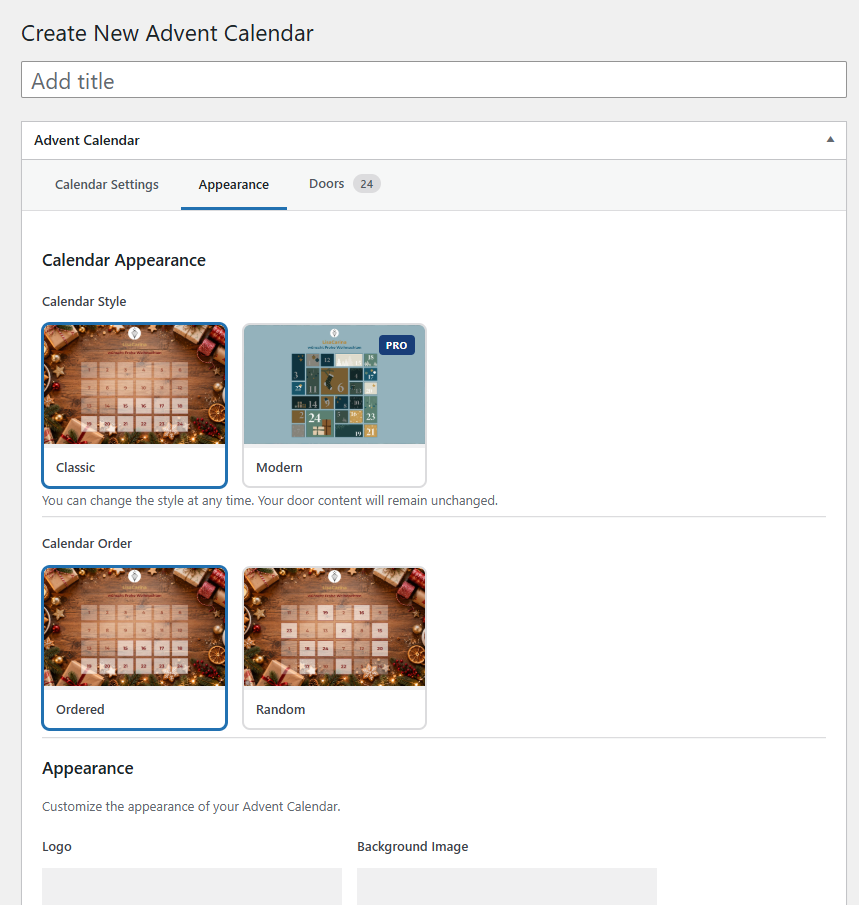
Open the Appearance tab to personalize your calendar.
Depending on your plan, you can customize:
-
Calendar Style: Choose between Classic and Modern (Pro).
-
Door Order: Display doors in numerical or random order (Pro).
-
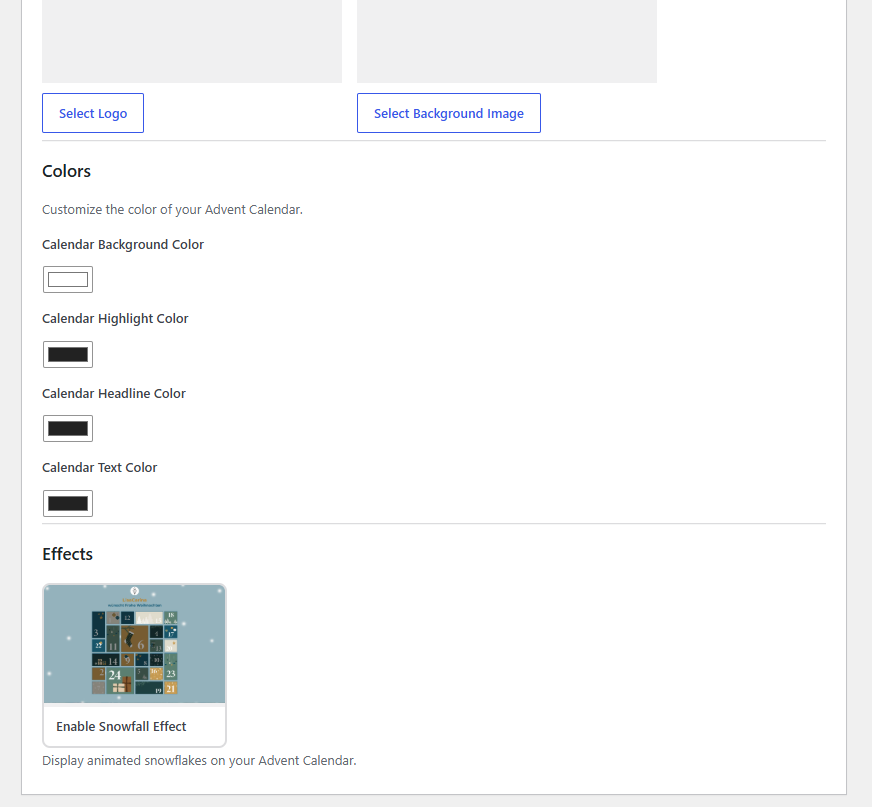
Logo & Background Image: Add your own branding (Pro).
-
Colors: Customize the background, headings, highlights, and text (Pro).
-
Snowfall Effect: Add a festive animated snowfall effect.
You can change the appearance later without losing your door content.
4. Add Content to Your Doors
Open the Doors tab to see all 24 doors.
-
Find the door you want to customize.
-
Click Edit Door.
-
Choose a content type.
-
Add your text, images, or other content.
-
Click Update to save your changes.
Magic Advent Calendar supports the following content types:
| Content Type | Availability |
|---|---|
| Text & Download | Free |
| Giveaway | Pro |
| Quiz | Pro |
| WooCommerce Product | Pro |
| Video | Free |
| Voucher / Discount Code | Pro |
You can mix different content types to create a unique experience throughout the Christmas season.
For detailed instructions, visit our Door Content Types documentation.
5. Add Your Calendar to Your Website
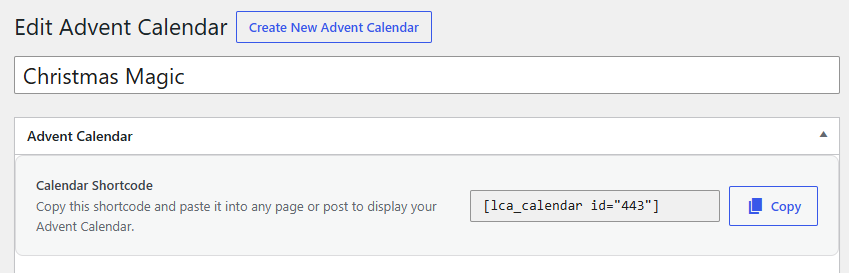
Once your calendar is ready, you can display it on any WordPress page or post using a shortcode.
-
Return to your calendar editor.
-
Copy the shortcode displayed at the top of the calendar settings.
-
Open the page where you want your calendar to appear.
-
Add a Shortcode block in the WordPress editor.
-
Paste your shortcode and publish or update the page.
Example:
Replace 123 with your calendar’s actual ID, or simply copy the shortcode provided in your calendar editor.
Your Advent calendar is now ready to welcome visitors!
6. How Do the Doors Work?
All 24 doors are visible from the beginning.
-
Locked Doors: Future doors remain locked until their opening date.
-
Today’s Door: The current day’s door is highlighted and ready to open.
-
Previous Doors: Visitors can revisit doors from earlier days.
Magic Advent Calendar remembers which doors a visitor has already opened using their browser’s local storage.
Important: Giveaway participation is only available on the respective door’s opening day, even if visitors can reopen the door later.
7. Duplicate an Existing Calendar
Want to reuse your calendar for another year or create a similar campaign?
You don’t have to start from scratch!
-
Navigate to LC Advent Calendar → All Advent Calendars.
-
Hover over the calendar you want to copy.
-
Click Duplicate.
-
Open the newly created draft and make your changes.
Your duplicate includes all 24 doors, their content, and the calendar settings.
Participant data and previous giveaway or quiz submissions are not copied.
8. You’re Ready for Christmas!
Congratulations! Your first Magic Advent Calendar is ready.
Add creative surprises, update your designs, and make every day of the countdown special for your visitors.
Need more help? Explore our documentation for calendar settings, door content types, giveaways, quizzes, and newsletter integrations.