
Magic Advent Calendar Pro allows you to collect and manage participant information from giveaways and quizzes directly in your WordPress dashboard.
Participant data is stored in your website’s WordPress database.
1. Viewing Participants
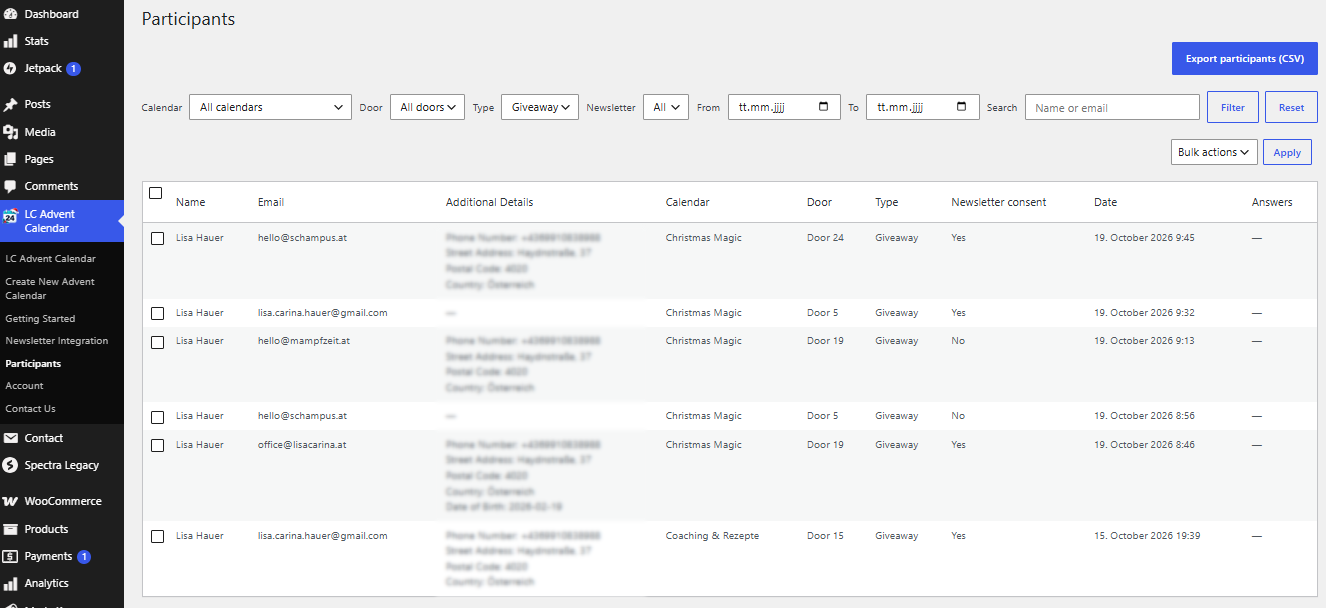
Open the participant management area in your WordPress dashboard to view submitted entries.
Depending on the participation type and enabled form fields, you can review:
-
First and last names
-
Email addresses
-
Phone numbers and addresses, if collected
-
Giveaway or quiz participation details
-
Answers submitted through quiz questions
-
Newsletter consent and subscription status
Reviewing Quiz Answers
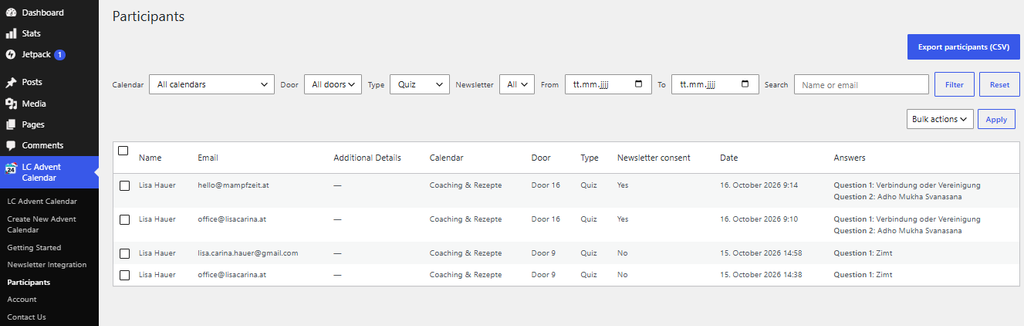
When a quiz includes Free Text questions, participants can submit individual answers.
These answers are stored with the corresponding participation record and can be reviewed in the WordPress backend.
Multiple Choice answers are automatically validated during the quiz, while Free Text answers are not automatically checked for correctness.
2. Filtering Participants
Use the available filters in the participant overview to narrow down your results.
This makes it easier to find relevant entries, review participants from a specific giveaway or quiz, and prepare data for further processing.
Filters are particularly useful when managing multiple Advent calendars or large numbers of participants.
3. Exporting Participants to CSV
Magic Advent Calendar Pro allows you to export participant data as a CSV file.
CSV files can be opened in spreadsheet applications such as Microsoft Excel or Google Sheets.
How to Export Participants
-
Open the Participants section in your WordPress dashboard.
-
Use the available filters to find the participants you want to export.
-
Click Export CSV.
-
Save the downloaded CSV file.
CSV exports are useful for reviewing giveaway entries, organizing participant information, and processing submitted quiz answers.
Privacy reminder: CSV files may contain personal information. Store exported files securely and delete them when they are no longer required.
4. Deleting Participant Data
You can delete participant records directly from your WordPress dashboard.
Delete an Individual Participant
Locate the participant in the overview and use the available delete action.
Delete Multiple Participants
-
Select the participants using the checkboxes.
-
Choose the bulk delete action.
-
Confirm the deletion if prompted.
To delete all participants, select all relevant entries and use the bulk delete action. If records span multiple pages, make sure all relevant entries are selected.
Important: Deleting participants from WordPress does not automatically delete previously exported CSV files.
6. GDPR & Data Protection
Website administrators are responsible for complying with applicable data protection regulations, including the GDPR where applicable.
We recommend:
-
Publishing an appropriate privacy policy.
-
Providing clear giveaway terms and conditions.
-
Collecting only the personal information you need.
-
Storing exported CSV files securely.
-
Deleting participant records and exported files when they are no longer required, subject to applicable retention obligations.
-
Processing valid requests for access to or deletion of personal data.
Magic Advent Calendar provides tools for managing participant records, but website administrators remain responsible for their data protection practices.