
Make your Advent calendar truly yours! Magic Advent Calendar offers flexible settings to customize your calendar’s schedule, appearance, and behavior.
In this guide, you’ll learn how to configure your calendar and create a unique Christmas experience for your visitors.
1. Open Your Calendar Settings
-
Navigate to LC Advent Calendar → All Advent Calendars in your WordPress dashboard.
-
Select the calendar you want to customize.
-
Open the Settings tab.
Here you can manage your calendar’s dates, content, design, and display options.
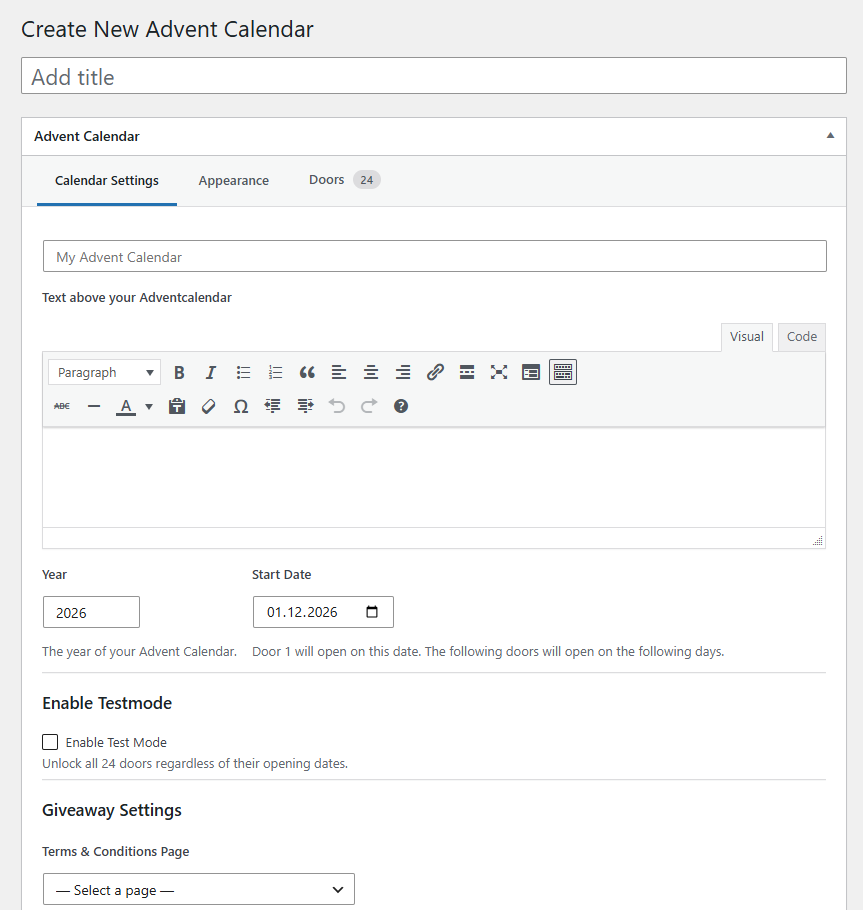
2. General Settings
Calendar Year
Select the year for your Advent calendar. This helps you organize calendars for different Christmas seasons.
Start Date
Choose the date when your first door should become available.
By default, Advent calendars start on December 1, but you can select a different starting date.
The opening dates of all 24 doors are calculated automatically based on your selected start date.
Headline & Introduction
Add a welcoming headline and introduction to your calendar.
Use these fields to introduce your Christmas campaign, explain what visitors can expect, or share a festive message.
Both fields support formatted text, allowing you to create an engaging introduction.
Participation Terms & Conditions (Pro)
If your calendar includes a Quiz or Giveaway, select the page containing your participation terms and conditions.
This page should explain the participation rules, eligibility requirements, and other relevant conditions.
Make sure the page is published and accessible to your visitors.
Tip: You can create a dedicated WordPress page for your participation terms and select it from the dropdown menu.
Test Mode
Want to preview your calendar before December?
Enable Test Mode to unlock all 24 doors, regardless of their scheduled opening dates.
This allows you to check your content, test quizzes, preview giveaways, and make sure everything works as expected.
How to enable Test Mode:
-
Check Enable Test Mode in your General Settings.
-
Save your calendar.
-
Open your calendar on your website and test the doors.
Important: Remember to disable Test Mode before launching your Advent calendar. Otherwise, visitors may be able to open future doors ahead of schedule.
3. Calendar Appearance
Calendar Style
Choose how your Advent calendar looks.
-
Classic (Free): A traditional grid layout displaying all 24 numbered doors.
-
Modern (Pro): A creative layout with different door sizes and customizable door images.
Door Order (Pro)
Choose how your doors are arranged:
-
Numerical: Doors appear in their natural order from 1 to 24.
-
Random: Doors are displayed in a mixed order for a more playful experience.
Random order only changes the visual arrangement. Opening dates remain assigned to their original door numbers.
Logo (Pro)
Upload your company logo or another image to personalize your calendar.
Background Image (Pro)
Add a festive background image to give your calendar a unique atmosphere.
For best results, use a high-quality image that works well on both desktop and mobile devices.
Custom Colors (Pro)
Adjust your calendar’s colors to match your website or brand identity.
Available options include:
-
Background Color
-
Highlight Color
-
Headline Color
-
Text Color
Snowfall Effect
Enable the animated snowfall effect to add a festive touch to your calendar.
Custom Door Images
Want to give your Advent calendar a personal touch? You can customize individual doors by uploading your own images.
-
Open the door you want to customize.
-
Set a Featured Image in the WordPress editor.
-
Save your changes.
Your uploaded image will be used as the door’s visual design.
Image Recommendations:
-
Minimum image size: 360 × 360 px
-
Include the door number directly in your image, as it will not be added automatically.
-
Use high-quality images for the best visual appearance.
Tip: Create a consistent design for all 24 doors to give your Advent calendar a professional and cohesive look.
4. Save Your Changes
After customizing your calendar, click Update to save your settings.
Your changes will be applied to the calendar without removing or resetting your existing door content.