
Create exciting giveaways and let visitors enter to win prizes directly through your Advent calendar.
With Magic Advent Calendar Pro, you can collect participant information, manage entries, and optionally connect your giveaway to a newsletter service.
1. How to Create a Giveaway
-
Open Magic Advent Calendar → Calendars.
-
Select your calendar and navigate to the Doors tab.
-
Open the door you want to edit.
-
Select Giveaway as the content type.
-
Enter your giveaway details and configure the participation form.
-
Save your changes.
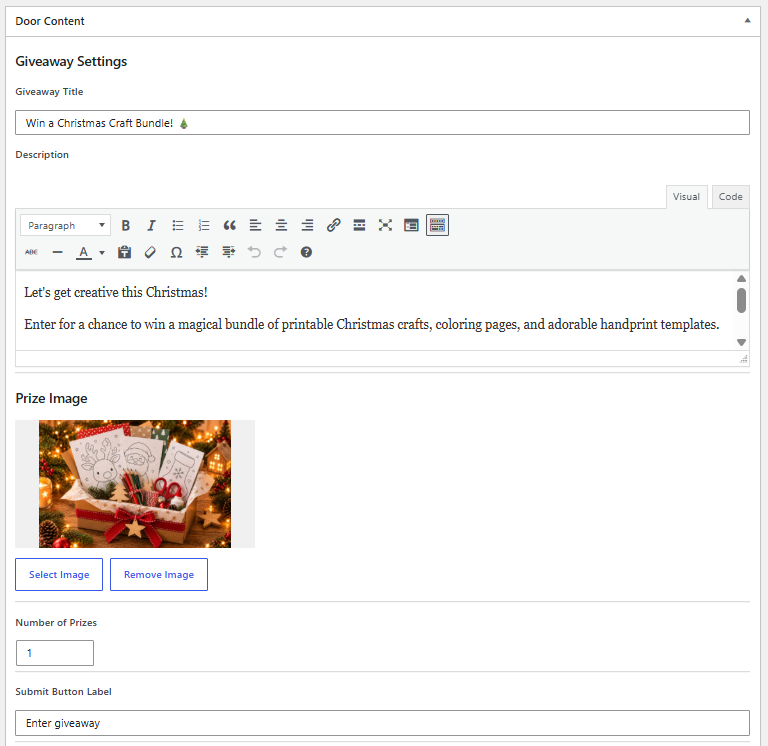
Giveaway Settings
Customize how your giveaway appears to visitors.
-
Headline: Enter a title for your giveaway.
-
Description: Describe the prize and explain how to participate.
-
Button Text: Customize the participation button.
2. Participation Form
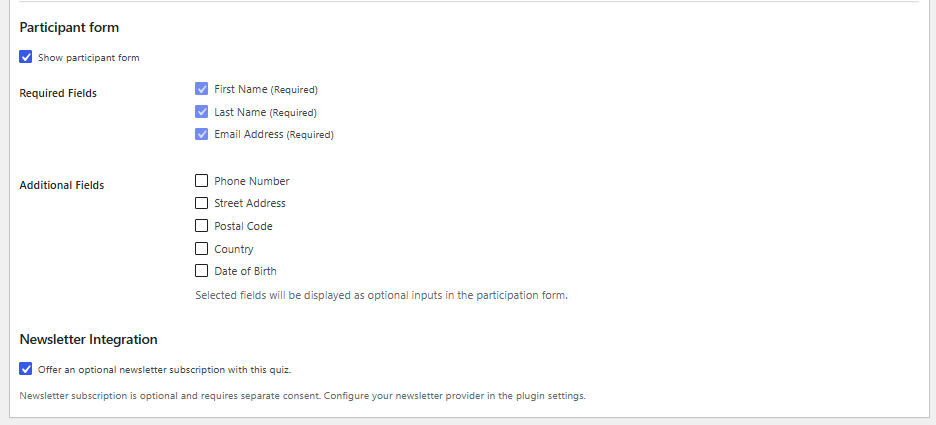
Visitors enter their information to participate in the giveaway.
The form includes the following fields:
| Field | Required |
|---|---|
| First Name | Yes |
| Last Name | Yes |
| Email Address | Yes |
| Phone Number | Optional |
| Address | Optional |
| Acceptance of Terms and Conditions | Yes |
| Newsletter Subscription | Optional |
Newsletter consent is separate from giveaway participation and must be provided voluntarily.
3. Terms and Conditions
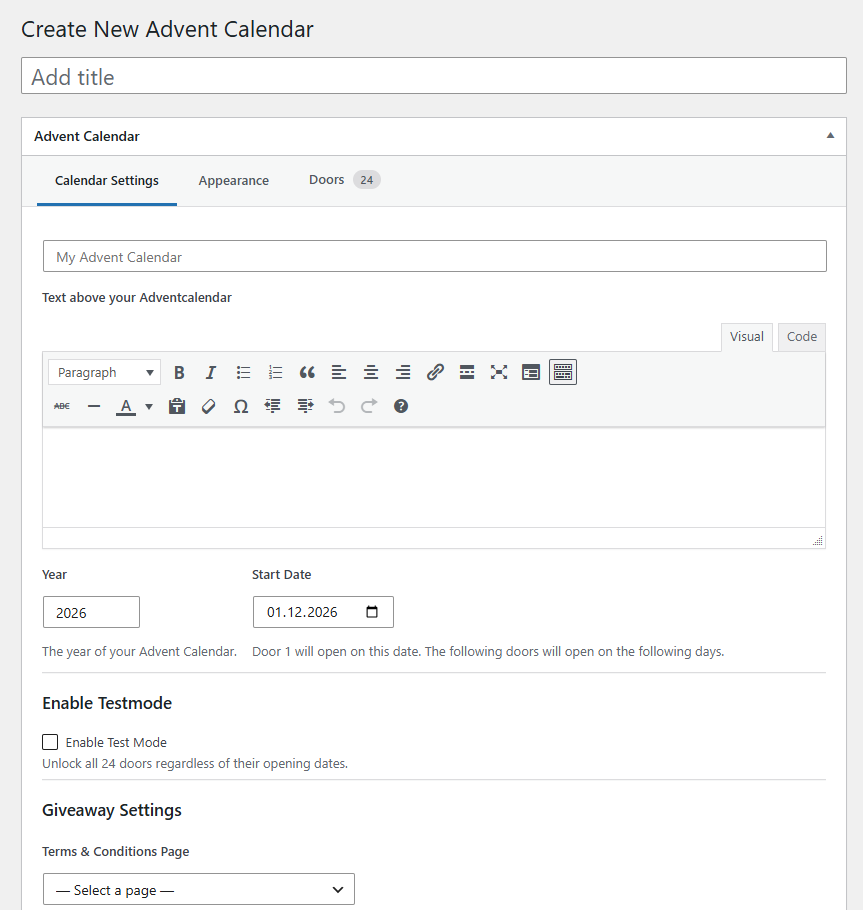
Before launching a giveaway, make sure you have published your participation terms and conditions.
You can configure the Terms and Conditions URL in your calendar settings.
Participants must accept the terms before submitting their entry.
We recommend including information about eligibility, the participation period, prizes, winner selection, and how winners will be contacted.
4. Newsletter Integration
You can optionally allow participants to subscribe to your newsletter when entering a giveaway.
Magic Advent Calendar supports newsletter integrations such as Brevo and Mailchimp.
Newsletter subscriptions require separate consent and are processed according to the selected provider’s configuration.
For setup instructions, see Newsletter Integrations.
5. Participation Period
Giveaway participation is only available on the scheduled opening day of the corresponding calendar door.
Visitors cannot submit entries before or after that day.
Test Mode: Authorized users can test future giveaway doors. Test submissions may create real participation records and trigger emails.

Announcing a Winner
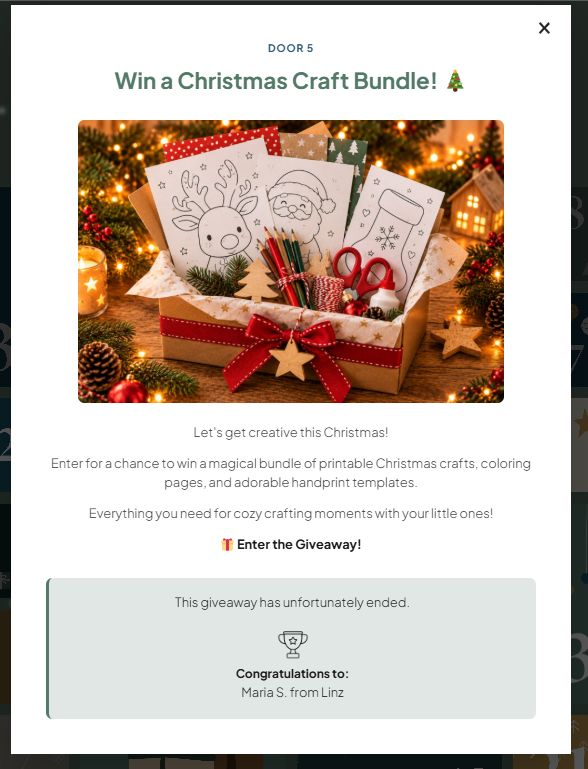
After the participation period has ended, you can enter the winner’s name in the giveaway settings.
The winner will then be displayed in the giveaway door, allowing visitors to see who won the prize.
6. Managing Participants
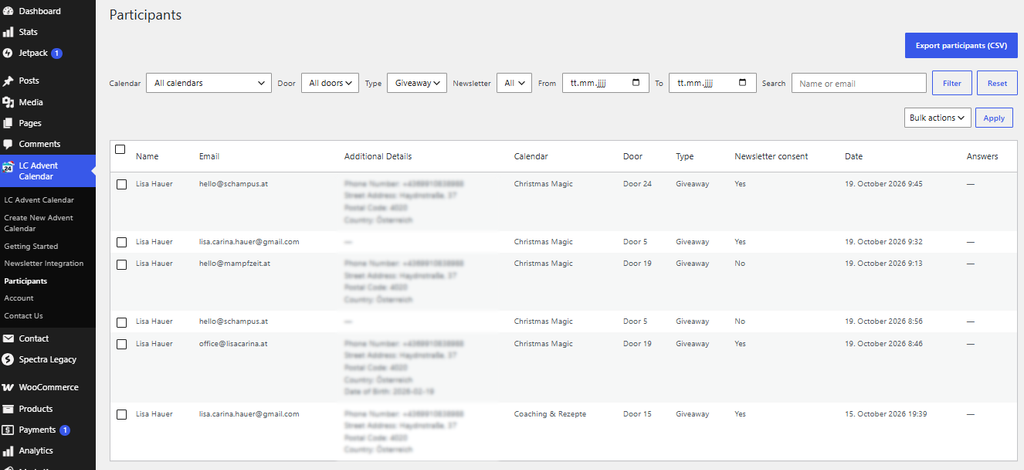
All giveaway entries are stored in your WordPress database and can be viewed directly in the WordPress dashboard.
You can review:
-
Participant names and email addresses
-
Additional information, such as phone numbers and addresses, if collected
-
Newsletter consent and subscription status
This makes it easy to review entries, manage participants, and select a winner after the giveaway has ended.
Note: Participant data is stored on your website and should be handled in accordance with applicable data protection regulations.
Data Privacy & Deletion
Participant data is stored in your WordPress database and should be handled in accordance with applicable data protection regulations, such as the GDPR.
You can manage and delete participant data directly from your WordPress dashboard.
-
Delete individual participants: Select a participant and delete their entry.
-
Delete multiple participants: Select several participants using the checkboxes and use the bulk delete action.
-
Delete all participants: Select all entries and use the bulk delete action. If your list spans multiple pages, make sure all relevant entries are selected.
Important: Website administrators are responsible for deleting personal data when it is no longer needed or when a valid deletion request is received, subject to applicable legal retention requirements.
7. Email Notifications
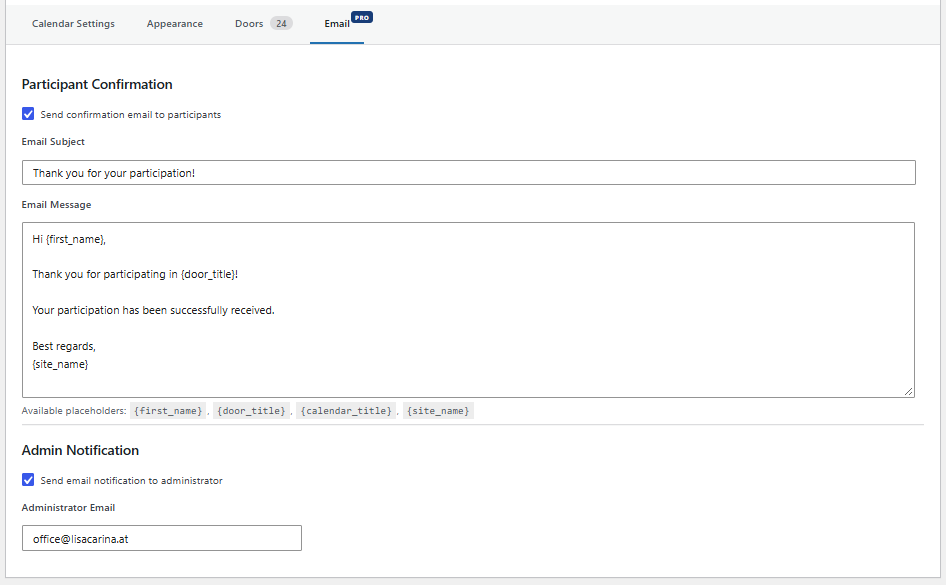
You can enable automatic participant confirmation emails and admin notifications in your calendar’s Email settings.
These notifications are independent of newsletter subscriptions.
8. Security and Spam Protection
Magic Advent Calendar includes basic security measures to protect giveaway submissions:
-
Server-side validation: Submitted data is validated before being processed.
-
Rate limiting: Limits excessive submission attempts within a short period.
-
Duplicate prevention: Prevents multiple entries using the same email address for the same giveaway.
These measures help reduce spam and duplicate submissions but cannot guarantee complete protection against automated entries.