Make your Advent calendar more interactive with quizzes! Ask your visitors questions, test their knowledge, and reward them with exclusive content, discount codes, or downloadable files.
The Quiz feature is available with Magic Advent Calendar Pro.
1. How to Create a Quiz
-
Open Magic Advent Calendar → Calendars in your WordPress dashboard.
-
Select your calendar and navigate to the Doors tab.
-
Open the door you want to edit.
-
Select Quiz as the content type.
-
Configure your quiz questions, answers, and optional reward.
-
Save your changes.
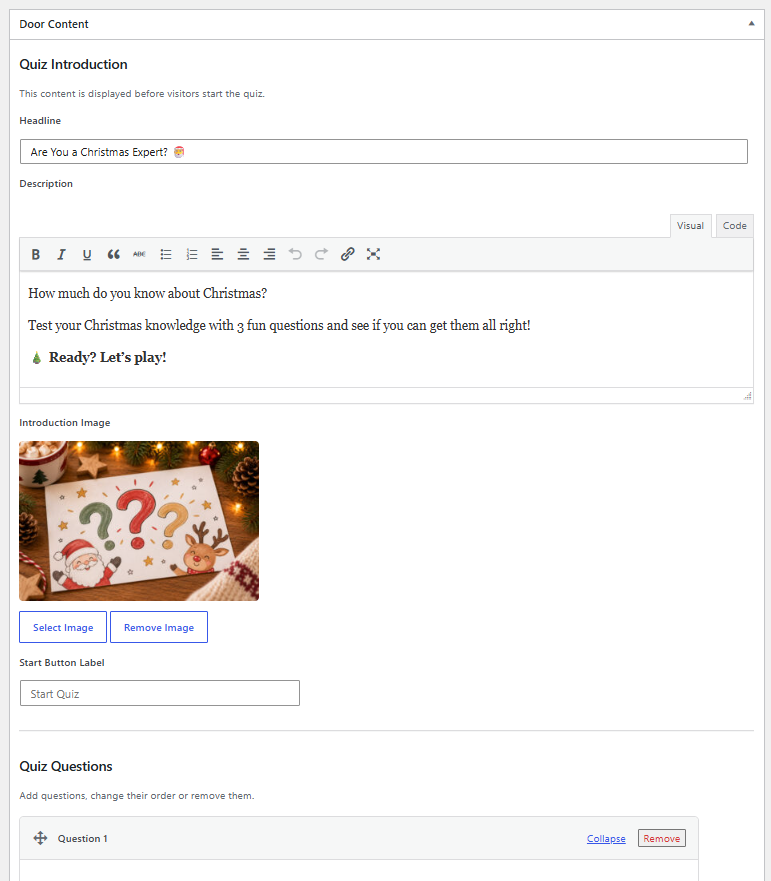
Quiz Settings
Introduction
Customize the introduction visitors see before starting the quiz.
-
Headline: Enter a title for your quiz.
-
Description: Add a short introduction or instructions.
-
Button Text: Customize the button visitors click to start the quiz.
2. Questions and Answers
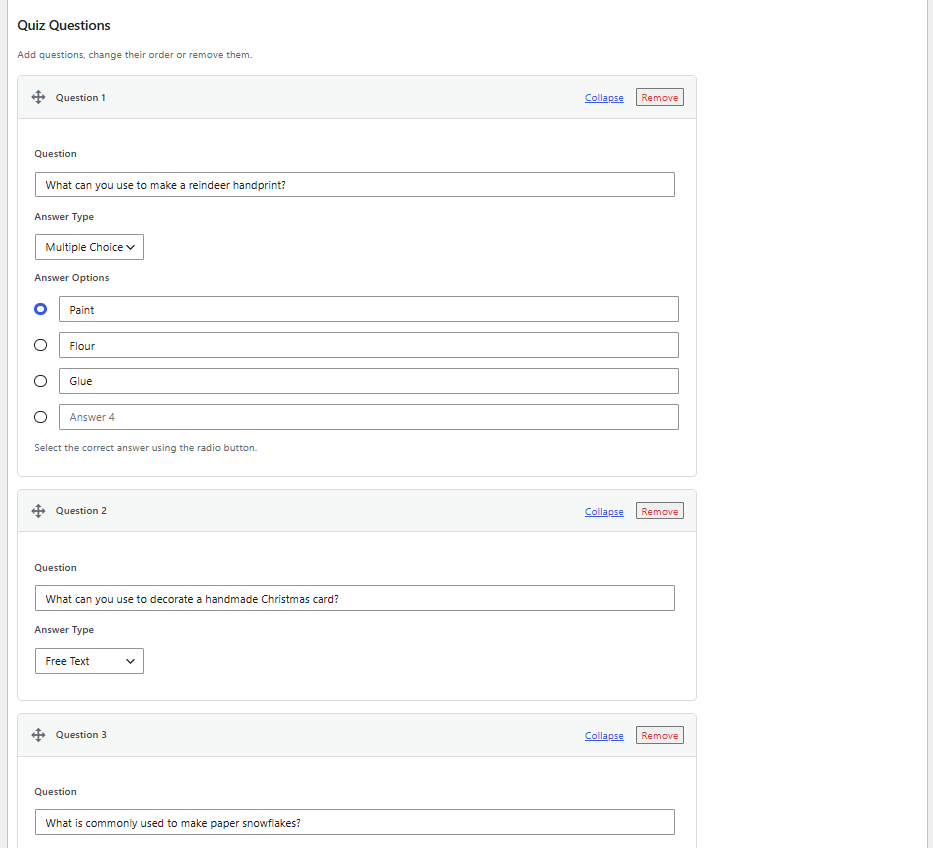
Magic Advent Calendar Pro supports two types of quiz questions:
Multiple Choice Questions
Create questions with predefined answers and select the correct answer.
-
Visitors choose from the available answers.
-
Answers are automatically validated.
-
Visitors must select the correct answer before proceeding to the next question.
Free Text Questions
Allow visitors to enter their own answers in a text field.
-
Visitors can submit individual, open-ended answers.
-
Answers are not automatically validated.
-
Submitted answers can be viewed in the participation records.
You can combine Multiple Choice and Free Text questions within the same quiz.
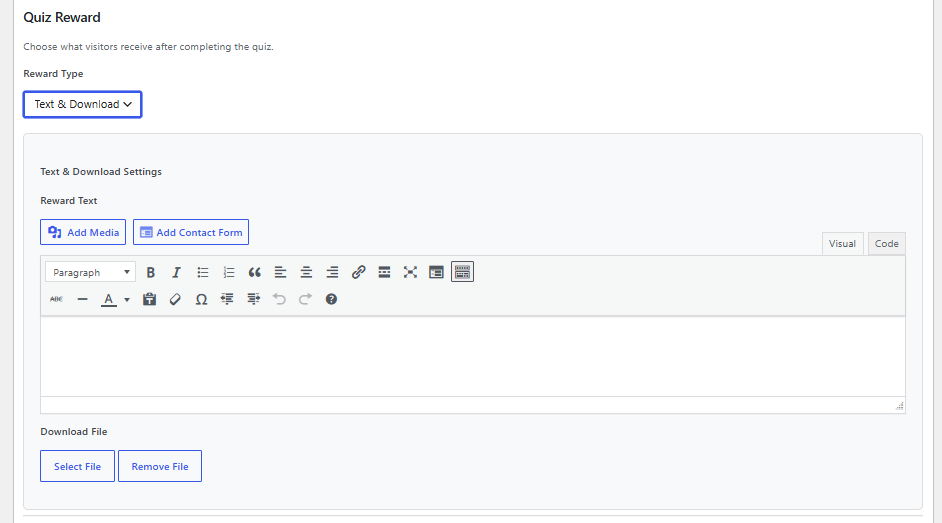
3. Quiz Rewards
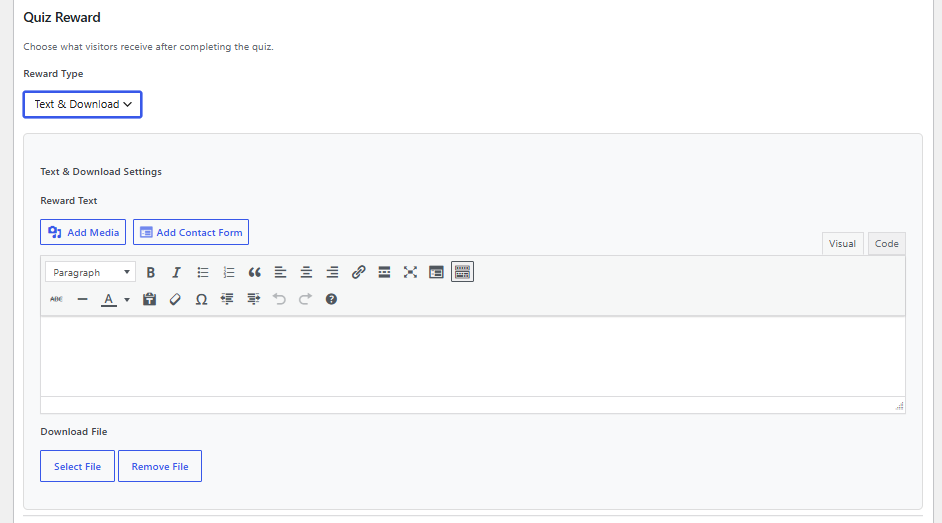
Reward visitors who successfully complete your quiz.
Choose from three reward types:
| Reward Type | Description |
|---|---|
| Text & Download | Display a custom message after completing the quiz. Offer a downloadable file, such as a PDF, recipe, or checklist. |
| Voucher | Show a discount code, expiration date, and optional link to your shop. |
Rewards are displayed after the quiz has been completed and, if enabled, the participation form has been submitted.
4. Participant Form (Optional)
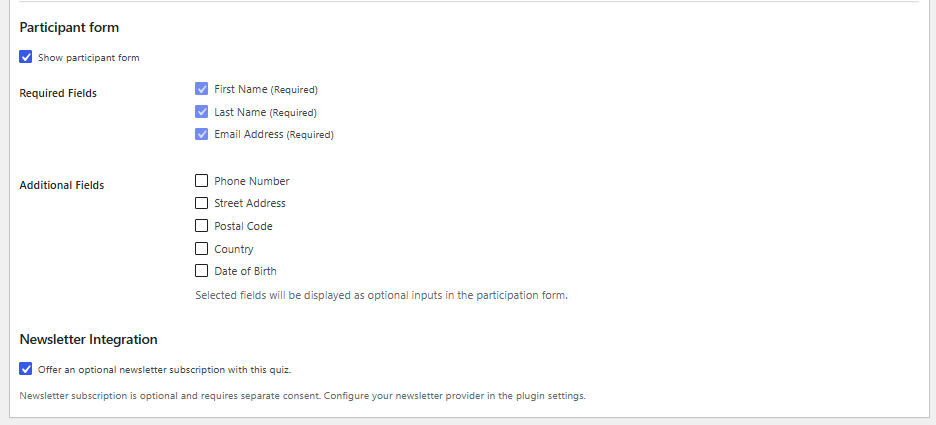
Enable the Participant Form to collect participant information after the quiz.
If enabled, visitors complete the participation form before receiving their reward.
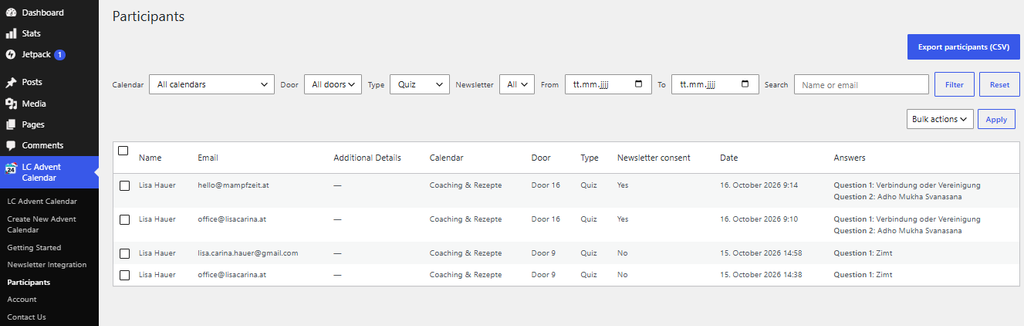
The participation records allow you to review submitted quiz answers, including responses to Free Text questions.
If the participant form is disabled, visitors can access their reward immediately after completing the quiz.
Show all Participants in Plugin
5. Email Notifications
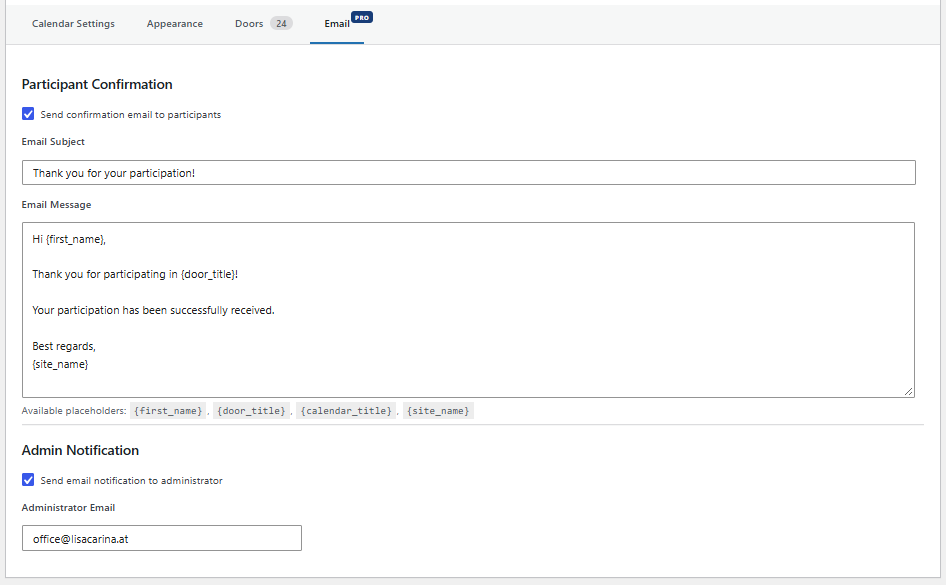
If participant confirmation emails are enabled in your calendar’s Email settings, participants who submit the quiz form can receive an automatic confirmation email.
You can also enable admin notifications to receive an email whenever a quiz participation is successfully submitted.
For more information, see Email Notifications.
6. Test Mode
You can use your calendar’s Test Mode to preview and test quizzes before their scheduled opening date.
Test Mode allows authorized users to access future doors without making them available to regular visitors.
Note: Quiz submissions and email notifications can still be processed during testing. Use test email addresses when checking participant forms and newsletter integrations.